iVANKY 4K@144Hz Steam Deck Dock Review: Worth It?
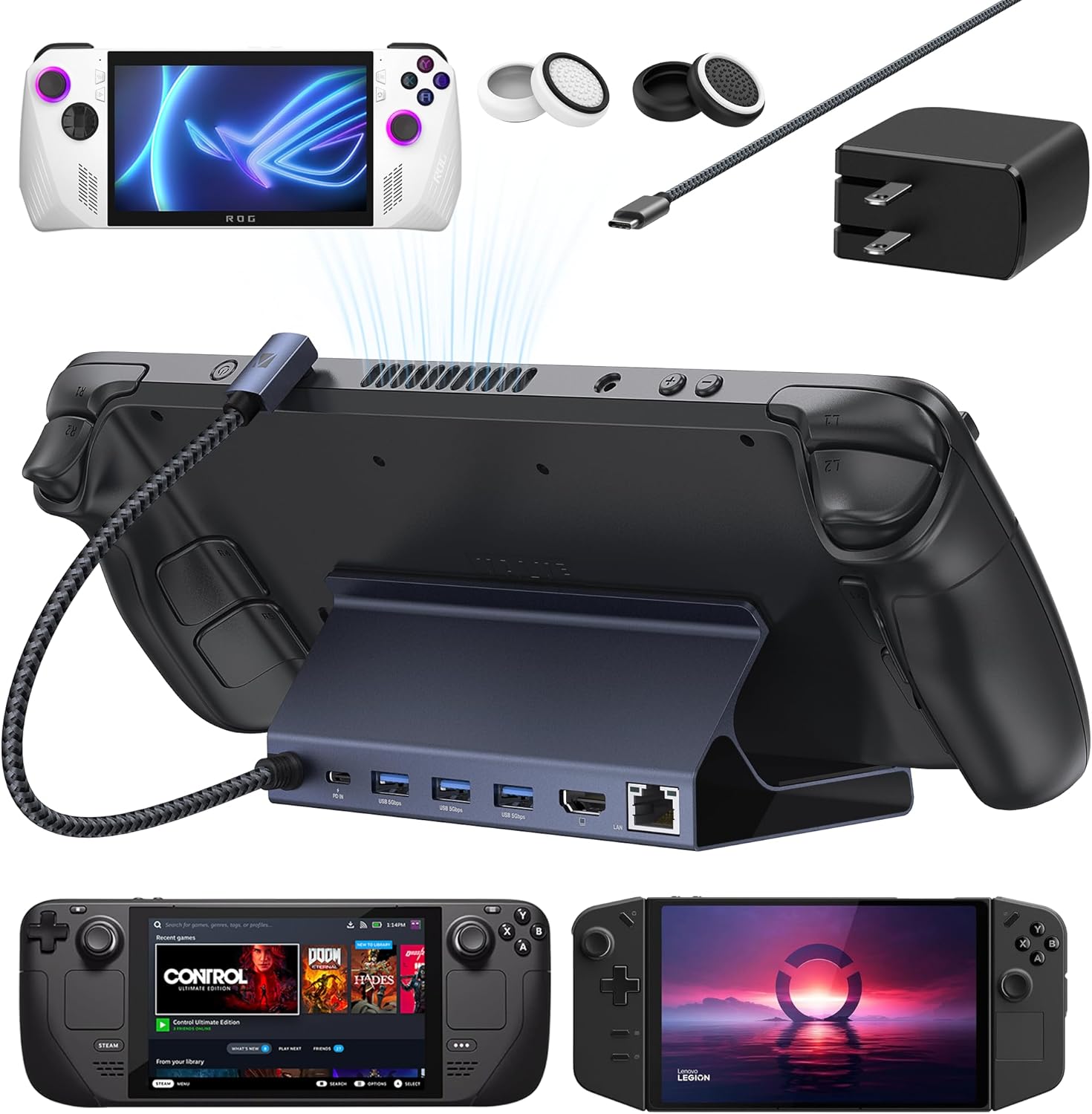
iVANKY 4K@144Hz Steam Deck Dock: what it is (and why it’s interesting)
If you own a Steam Deck (LCD or OLED) or one of the newer Windows handhelds like the ASUS ROG Ally / Ally X, Lenovo Legion Go, or MSI Claw, you already know the “handheld-to-desktop” dream is only as good as your dock. A good dock should be boring in the best way: you plug it in, your display lights up, Ethernet connects, your controller works, and you don’t have to think about it again.
The iVANKY 4K@144Hz Steam Deck Dock (8‑in‑1) is positioned as a higher-spec option than the typical 4K@60 docks. The headline is HDMI 2.1 with up to 4K@144Hz output capability, plus 1Gbps Ethernet, three USB‑A 3.0 ports, and it includes a 65W power adapter in the box. That “includes a charger” part matters more than people think, because a lot of docks are priced to look competitive until you add a decent USB‑C PD charger and cable.
I’m going to walk you through what you can realistically expect from this dock in day-to-day use (Steam Deck gaming, Windows handheld docking, desktop productivity, streaming, and couch gaming), where the spec sheet can be misleading, and whether it’s a good value compared with other docks you could buy today.
🛒 Check Current Price on Amazon →
Quick specs and ports (what you’re actually getting)
This iVANKY dock is an 8‑in‑1 style hub designed to sit on a desk/TV stand and hold a handheld at an angle. The key ports/features you should care about:
- HDMI 2.1 output (marketed up to 4K@144Hz)
- Gigabit Ethernet (1Gbps)
- 3× USB‑A 3.0 ports (for controllers, keyboard/mouse, external storage, etc.)
- USB‑C power delivery input (dock power-in)
- USB‑C connection to the handheld (single-cable docking)
- Includes a 65W power adapter (important for Windows handhelds that can draw more than the Deck)
That’s the practical list. The marketing also calls out compatibility with Steam Deck / Steam Deck OLED plus a range of Windows handhelds. In my experience, compatibility usually comes down to two things: (1) does your handheld support video out over USB‑C (DisplayPort Alt Mode), and (2) does your handheld play nicely with the dock’s USB controller and power delivery negotiation. Steam Deck and the big-name Windows handhelds generally do, but there are still some “gotchas” I’ll cover below.
Design and build quality: sturdy enough for daily docking?
For a dock like this, I care less about aesthetics and more about three real-world things: stability (does it wobble when you tap the screen or bump the desk), port placement (are cables fighting each other), and thermal behavior (does it get hot enough to cause dropouts).
The iVANKY dock is built like a typical “cradle” dock: your handheld rests in the front while the ports sit in the back. That’s the correct approach for most people because it keeps HDMI/Ethernet/USB cables from sticking out the side and getting yanked. In a living-room setup, rear-facing ports are simply cleaner.
Stability is generally good for the category. A dock doesn’t need to be heavy like a laptop dock, but it does need enough grip and weight that plugging in a USB device doesn’t send the whole thing skating across your TV stand. If you plan to use thick HDMI cables or stiff Ethernet cables, you’ll appreciate a dock that doesn’t feel “toy-like.”
One practical tip: if you use a handheld with a case or skin that adds thickness, make sure the USB‑C connector can still seat properly without stress. Many cradle docks work best when the handheld is “naked” or in a slim case. If your case forces the USB‑C plug to angle upward, that’s when ports wear out over time—on the handheld, not the dock.
Setup experience: plug-and-play or fiddly?
For Steam Deck owners, the ideal dock experience is: connect power to dock → connect HDMI to TV/monitor → plug dock into Deck → external display activates → you’re done. With most modern docks, it’s close to that, but there are two common hiccups:
- Display handshake quirks (especially with TVs, AV receivers, or high refresh monitors)
- Power delivery negotiation (especially if the charger isn’t strong enough)
Including a 65W power adapter helps reduce one variable. Steam Deck typically doesn’t need 65W to charge, but Windows handhelds can be more demanding. The ROG Ally family, Legion Go, and similar devices can pull more during boosted performance modes, and a weak charger can lead to “slow charging” warnings, battery drain while docked, or occasional USB instability when the dock is power-starved.
On the display side, the “4K@144Hz” claim is the part I want you to interpret correctly. The dock can expose an HDMI 2.1 link capable of high bandwidth, but your handheld’s USB‑C video output and your display’s supported modes determine what you’ll actually get. Steam Deck, in particular, is often happiest at 4K@60 for TV use or 1440p for higher refresh on monitors—because the GPU performance is the limiting factor long before the cable bandwidth is.
In other words: the dock can be “ready” for 4K@144, but that doesn’t mean your Steam Deck can push modern games at 4K@144. What it does mean is you’re less likely to be limited by the dock when you choose lower resolutions with higher refresh (like 1080p/1440p at 120–144Hz) for esports titles, older games, or desktop use.
Real-world performance: video output (HDMI 2.1) and refresh rates
Let’s talk about what people actually do with a dock: connect to a TV or monitor and play games. The iVANKY’s HDMI 2.1 positioning is attractive for three scenarios:
- High refresh rate monitors (1080p/144Hz or 1440p/120–144Hz) for smoother desktop and lighter games
- 4K TVs where you want a clean 4K@60 output for media and UI
- Windows handhelds that can benefit more from higher refresh output in certain titles/settings
For Steam Deck, the most realistic “sweet spot” when docked is often 1080p or 1440p depending on the game and your performance target. Many Deck owners use FSR (in-game or system-level scaling) to make 1080p output look good on a 4K TV while keeping performance reasonable. In those cases, the dock’s job is to provide a stable signal with minimal fuss. This iVANKY dock is built for that kind of stability.
Where higher refresh can matter on Steam Deck is not “AAA at 4K/144” (that’s fantasy), but rather:
- Indie games that can run at very high frame rates
- Older titles
- Emulation
- Desktop mode smoothness
If you own a 144Hz monitor, it’s nice to have a dock that doesn’t artificially cap you at 60Hz the way many budget HDMI 2.0 docks do.
One caution: high refresh + variable refresh rate (VRR) + HDR + specific TVs/receivers can be a compatibility minefield. Even if the dock supports HDMI 2.1, your handheld’s output path may not support every feature your TV does, and SteamOS/Windows graphics drivers can be picky. If you want “everything on” (4K + 120/144 + HDR + VRR), be prepared to test combinations and potentially settle on a stable mode (often 4K@60 for TV gaming, or 1440p@120 for monitors).
Input and peripherals: USB-A ports that actually matter
The three USB‑A 3.0 ports are a big deal for a handheld dock because you quickly run out of ports once you start using it like a mini PC. A typical setup might include:
- 2.4GHz wireless dongle for a keyboard/mouse combo
- Controller dongle (or a wired controller)
- External SSD or flash drive for ROMs/media/transfers
Three ports means you can do that without immediately needing a second hub. That’s a quality-of-life win.
That said, remember how USB docks usually work internally: everything shares bandwidth back to the handheld over a single USB‑C connection. If you plug in a fast external SSD and also push high-bitrate video out while downloading over Ethernet, you’re sharing a pipe. In practice, for most people, it’s fine. Where you’ll notice constraints is if you’re trying to do sustained high-speed file transfers while also running a high-res external display and saturating Ethernet. That’s not a common “couch dock” use case, but it can show up if you treat your handheld like a desktop replacement.
Gigabit Ethernet: the underrated feature for handheld docks
Wi‑Fi on handhelds is good enough for a lot of gaming, but Ethernet is still the best way to make downloads, streaming, and online play feel consistent. The iVANKY dock includes 1Gbps Ethernet, and in my view this is one of the strongest reasons to buy a dock instead of a simple USB‑C-to-HDMI adapter.
Here’s where Ethernet helps most:
- Steam downloads and updates (especially if you have fast home internet)
- Remote Play / game streaming (Steam Remote Play, Moonlight, Chiaki, etc.)
- Online competitive games where latency consistency matters
- Docked desktop work where Wi‑Fi interference is annoying
If you’re building a “Steam Deck console” setup in the living room, Ethernet is the difference between “it works” and “it works like a console.”
Power delivery and the included 65W adapter: good, but know the limits
Including a 65W power adapter is a practical value add, particularly for Windows handheld owners. Many docks ship without a charger, and many people end up using random USB‑C chargers that don’t negotiate power correctly or don’t sustain their rated wattage.
Here’s the nuance: a dock can’t magically give your handheld more power than the adapter can deliver, and the dock itself consumes a small amount of power to run its chipset, Ethernet, and USB. So even with a 65W adapter, the power available to the handheld can be a bit less than 65W in real use.
For Steam Deck, that’s not a concern. For devices like the ROG Ally family or Legion Go, 65W is generally the minimum I recommend for a docked experience. If you’re the kind of user who runs max performance modes, charges peripherals off the dock, and connects external SSDs, you’ll appreciate having a solid power budget.
My buying advice: If you already own a high-quality 65W+ USB‑C PD charger you trust, the included adapter is less of a selling point. But if you don’t, it’s a real “hidden cost” saver.
Compatibility: Steam Deck, Steam Deck OLED, and Windows handhelds
iVANKY markets this dock for a wide range of handhelds. In practice, compatibility breaks down like this:
- Steam Deck / Steam Deck OLED: Generally straightforward. SteamOS handles docked mode well, and the dock’s port selection matches what Deck owners need.
- ASUS ROG Ally / Ally X: Works like a USB‑C dock for a Windows PC. You’ll likely spend a little more time in Windows display settings to choose refresh rate and scaling the way you want.
- Lenovo Legion Go: Similar to the Ally; the dock makes it much easier to treat it like a small desktop.
- MSI Claw: Again, Windows behavior—expect typical Windows docking quirks (display mode remembering, occasional driver updates affecting output).
The dock is ultimately a USB‑C docking station with an HDMI output, so the biggest determinant is whether your device supports DisplayPort Alt Mode over USB‑C and USB‑C Power Delivery. All the devices listed above do.
One real-world tip: If you experience black screens or “no signal” on an external display, try this order: connect HDMI to TV/monitor first, then power to dock, then connect handheld last. It sounds silly, but it can improve handshake reliability with some displays.
Using it as a “console dock” on a TV: what to expect
If your goal is to make your Steam Deck feel like a Nintendo Switch-style console, this iVANKY dock checks the core boxes: HDMI out, Ethernet, and enough USB for controllers.
Here’s what I’ve found matters most for a TV setup:
- Stable 4K@60 output for the UI and streaming apps
- Low hassle controller connectivity (USB dongles or wired controllers)
- Ethernet to avoid Wi‑Fi hiccups
- A dock that physically holds the handheld securely so the USB‑C port isn’t stressed
This dock is well aligned with that use case. The “4K@144” headline matters less on a TV (most people will run 4K@60 on a Deck anyway), but it does indicate you’re not buying an under-specced HDMI implementation.
One more practical note: if your TV supports game mode and you care about input lag, make sure it’s enabled. The dock won’t fix TV processing lag. A lot of “my dock feels laggy” complaints are actually “my TV is in the wrong picture mode.”
Using it at a desk: the handheld-as-PC experience
At a desk, the iVANKY dock makes more sense than a minimalist dongle because you can leave everything connected: monitor, Ethernet, keyboard/mouse, and maybe an external drive. Then your handheld becomes a one-cable computer.
For Steam Deck, desktop mode is genuinely useful for:
- Managing files and emulators
- Installing non-Steam launchers
- Web browsing and media
- Light productivity (documents, email)
For Windows handhelds, a dock like this is even more valuable because Windows is already oriented around external displays and peripherals. If you travel with a handheld and want a simple “hotel desk setup,” this can be a nice way to get Ethernet (if available), a full-size keyboard, and a real monitor.
The one limitation to keep in mind is that this is still a handheld CPU/GPU. The dock doesn’t change performance—it just makes the device easier to use in a desktop posture.
🛒 View on Amazon (4K@144Hz Dock) →
Audio, latency, and “does it feel responsive?”
Docks can introduce subtle annoyances: audio dropouts over HDMI, occasional display flicker, or USB input feeling inconsistent if the dock is underpowered. In general, HDMI audio is part of the same handshake as video—if your display connection is stable, audio tends to be stable too.
Where I see most problems in the dock world is:
- Marginal HDMI cables (especially at higher refresh rates)
- TV/receiver handshake issues (ARC/eARC setups can complicate things)
- Power delivery issues causing USB devices to reconnect
The iVANKY’s inclusion of a 65W adapter reduces the power variable, and the HDMI 2.1 positioning suggests it’s intended for higher bandwidth signals. Still, if you’re pushing 144Hz, use a quality HDMI cable and keep the cable run reasonable.
As for input latency: the dock itself shouldn’t add meaningful latency. Any “lag” you feel is usually the TV’s processing, a wireless controller issue, or the game’s frame rate.
Pros and cons (the honest list)
Pros
- HDMI 2.1 with high refresh support gives you more flexibility than basic 4K@60 docks, especially for monitors.
- Includes a 65W power adapter, which improves out-of-box value and reduces compatibility headaches.
- Gigabit Ethernet is a major upgrade for downloads, streaming, and consistent online play.
- Three USB-A 3.0 ports is the right number for real setups (controller + keyboard/mouse + storage).
- Good “console dock” ergonomics with rear ports for clean cable management.
Cons
- “4K@144Hz” is situational: your handheld and display determine what you can actually run, and Steam Deck rarely benefits in games at 4K.
- Like most docks, bandwidth is shared across USB/Ethernet/display traffic; power users doing heavy transfers may hit limits.
- Cases can interfere with cradle fit and USB‑C seating on some handhelds (common to nearly all cradle docks).
- High refresh setups can be picky about cables and handshake order—especially with TVs/receivers.
Who this dock is best for (and who should skip it)
Buy this dock if you…
- Want a single dock that can serve Steam Deck and/or a Windows handheld without constant fiddling.
- Use a 144Hz monitor and don’t want to be stuck at 60Hz because of a cheap HDMI implementation.
- Care about Ethernet for stable downloads and streaming.
- Don’t already own a solid charger and appreciate the included 65W adapter.
- Need multiple USB-A ports for a real controller/keyboard/storage setup.
Consider skipping (or buying a cheaper dock) if you…
- Only need HDMI 4K@60 and one or two USB ports for occasional use.
- Never plan to use Ethernet and are happy on Wi‑Fi.
- Already have a full desktop dock setup and just want a travel dongle.
Value assessment: is it worth the money?
Value in a handheld dock comes down to two questions:
- Will it be your primary way to use the handheld? If yes, pay for stability and ports.
- Are you buying a dock plus a charger anyway? If yes, bundles like this often make more sense.
Budget docks can work, but they’re also where I see the most complaints: intermittent HDMI, Ethernet that drops, USB ports that don’t like certain dongles, and chargers that aren’t included so you end up cobbling together a power solution.
The iVANKY’s “premium” angle is primarily HDMI 2.1 high refresh plus the included 65W adapter. If you’ll actually use those benefits—especially the adapter—this dock tends to make more financial sense than it looks at first glance.
If you already own a trusted 65W/100W charger and you only care about 4K@60, you may find better value elsewhere. But if you’re building a clean, reliable docked setup from scratch, I think the overall package is compelling.
Buying advice: how to make sure it works well in your setup
To avoid the most common dock frustrations, here’s what I recommend before you buy (or right after it arrives):
- Use a quality HDMI cable, especially if you plan to run 120–144Hz. High refresh is less forgiving.
- Decide your target output mode: for Steam Deck on a TV, plan around 4K@60 output with in-game scaling; for monitors, consider 1440p/120–144Hz for smoother desktop and lighter titles.
- Test your peripherals (controller dongles, keyboard/mouse) early. If something is flaky, try a different USB port or reduce wireless interference.
- If you use a case, check that the handheld seats without stressing the USB‑C connector. Long-term port health matters.
- Update your handheld: SteamOS updates and Windows graphics driver updates can improve dock behavior over time.
Common questions I get about docks like this
Can this dock make my Steam Deck run games at 4K@144Hz?
No. The dock can support high bandwidth output, but the Steam Deck’s performance is the limiting factor for most games. Think of 4K@144 as “capability,” not “guaranteed gaming outcome.”
Is Ethernet worth it on a Steam Deck?
If you download a lot of games, stream from a PC/console, or play online games where consistency matters, yes. It’s one of the most noticeable upgrades a dock can provide.
Do I need the included 65W adapter?
Steam Deck owners can often get by with less, but Windows handhelds benefit from a solid 65W baseline. If you don’t already have a good PD charger, having one included is a real advantage.
Will it work with my monitor’s 144Hz mode?
Often yes, but the final answer depends on your handheld’s USB‑C video output capabilities and your monitor’s supported timing/resolution combinations. If you run into issues, try lowering resolution (e.g., 1080p/144) or using a different HDMI cable.
🛒 Buy on Amazon – Check Price & Reviews →
Final verdict: should you buy the iVANKY 4K@144Hz dock?
If you want a dock that feels like a “real” docking station—not just a basic adapter—the iVANKY 8‑in‑1 is a strong option. The combination of HDMI 2.1 high refresh support, gigabit Ethernet, and three USB‑A ports hits the practical needs of both Steam Deck owners and Windows handheld users. And the included 65W power adapter makes it a more complete package than many competing docks that look cheaper until you add power.
I’d recommend it most to readers building a dedicated docked setup (TV console-style or desk PC-style) who want fewer compromises and fewer variables. If you only dock once in a while and you’re fine with 4K@60 and Wi‑Fi, you can save money with a simpler dock. But if you care about a clean, reliable setup—and especially if you have a 120/144Hz monitor—this iVANKY dock earns its spot on the shortlist.